How to Pay NOUN School Fees via Remita: Step-by-Step Guide
Paying your school fees at the National Open University of Nigeria (NOUN) is a streamlined process handled primarily through the official student portal and powered by the Remita payment gateway. Whether you are a fresh student paying your acceptance and compulsory registration fees or a returning student registering for a new semester, proper navigation is essential to ensure your payment reflects seamlessly on your student wallet.
For regular updates, guides, and academic resources, you can always check out Student Arrive.
Below is the comprehensive, step-by-step procedure to successfully generate your Remita Retrieval Reference (RRR) and complete your NOUN fee payment without hitlets or delays.
Important Pre-Payment Guidelines
- Always Generate RRR from Your Portal: Never generate a Remita code directly from the general Remita website for your semester or school fees. Always initiate the payment from your official student profile (
nouonline.net). Doing this ensures the payment maps automatically to your student identification. - Note Your Fee Breakdown: Before initiating payment, confirm your precise payable amount for the semester (inclusive of compulsory items like TISHIP, ICT, library, and course-specific fees). You can utilize the Student Arrive platform for helpful breakdowns and educational updates.
Step-by-Step Procedure to Pay NOUN Fees via Remita
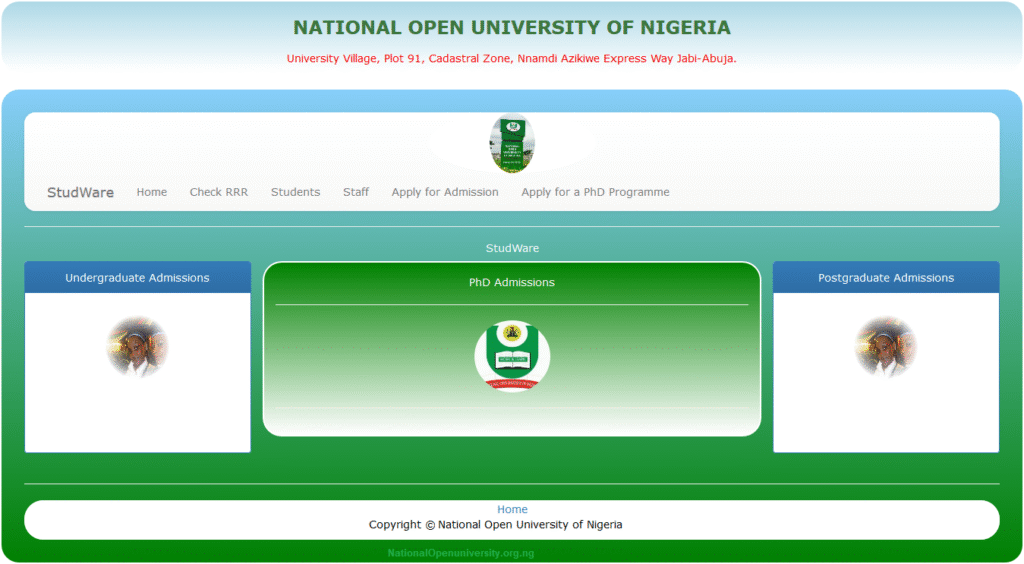
Step 1: Log in to the NOUN Student Portal
- Navigate to the official NOUN student portal (nouonline.net or the active student login portal).
- Select Student Login under the registered student section.
- Enter your Matriculation Number and your password, then click Login.
- Close any pop-up windows or calendar notices that appear on your dashboard.
Step 2: Initiate Payment & Generate RRR
- On the left-hand navigation menu of your dashboard, click on “Register for the semester” (or the specific fee option corresponding to what you want to pay, such as Acceptance or Application fees).
- Review the fee breakdown displayed on the screen, answer any confirmation security prompts required, and click Submit.
- Scroll down to input the exact amount you intend to pay into your e-wallet and click on “Initiate Payment” or “Make Payment”.
- The system will direct you to a confirmation page displaying your Order ID and Remita Retrieval Reference (RRR) code.
- Tip: Copy or write down your 12-digit RRR code before clicking proceed. Check the confirmation box and click Proceed to move to the Remita payment gateway.
Step 3: Choose Your Preferred Payment Method on Remita
Once redirected to the Remita page, you will see the bill details and a Submit button. Click Submit to reveal the available payment channels:
- Option A: Pay Online via Bank Transfer / USSD (Recommended)
- Select Bank Transfer or USSD from the menu.
- Remita will display a temporary, dedicated account number or a USSD code.
- Open your mobile banking application, transfer the exact amount specified to the generated account number, and return to the browser screen to click “I’ve sent the money”.
- Option B: Pay Online via Debit Card
- Select the Card option (default).
- Input your Verve, MasterCard, or Visa card details, expiry date, CVV, and complete any bank token or OTP (One-Time Password) prompt.
- Option C: Pay at a Commercial Bank Branch
- You can copy your RRR code, walk into any commercial bank branch in Nigeria, and tell the teller you want to make a payment via the Remita platform for the National Open University of Nigeria (NOUN).
- Hand over the cash and your RRR. Ensure you collect your payment receipt/teller before leaving the bank.
Critical Warning During Online Payment
When you input your One-Time Password (OTP) or authorize the transaction on your banking app, do not refresh, close, or click anything on your browser screen. Allow the system to automatically process the transaction and securely redirect you back to the NOUN portal page. Prematurely interrupting this loop can cause a delay in wallet crediting.
What to Do After Payment
- Verify Your E-Wallet Balance: Once redirected successfully back to the NOUN portal, log out and log back in after a few minutes. Check your student wallet or profile dashboard to confirm that the funds have reflected.
- Proceed with Course & Exam Registration: With your wallet successfully funded, you can now proceed to register your courses and examinations for the semester.
- Keep Your Receipts: Always print or save a digital copy of your Remita payment receipt for future reference and clearance purposes.
For more guides tailored to Nigerian undergraduates and open-learning students, visit Student Arrive.