
The Ultimate Guide to JAMB CAPS: How to Check Admission Status, Accept/Reject Offers, and Avoid Common Mistakes
For every Nigerian aspirant, hitting your target score in the Unified Tertiary Matriculation Examination (UTME) is only the first step of the journey. The real magic—and where many candidates unfortunately lose their hard-earned slots—happens on the JAMB CAPS portal.
If you have ever been confused about what “Admission in Progress” means, or how to properly upload your O’level results so schools can see them, you are in the right place. This comprehensive guide breaks down everything you need to know about the Central Admissions Processing System (CAPS) to ensure your admission journey is hitch-free.
- (JAMB) Admission Status Checking Portal for UTME & DE Candidates 2021 & Past Years
- JAMB CBT Centers Approved for 2026 UTME/DE Registration and Other Essential Services in Nigeria and Abroad
- Joint Admissions and Matriculation Board (JAMB) Syllabus for 2026/2026 UTME [Official Version]
What is JAMB CAPS?
Introduced by the Joint Admissions and Matriculation Board (JAMB), CAPS stands for Central Admissions Processing System. It is an automated online platform designed to ensure quality control, transparency, and credibility in the admission process into Nigerian universities, polytechnics, and colleges of education.
Before CAPS, institutions could manually admit students, which often led to multiple admissions for one candidate while others were left with none. CAPS solves this by acting as a central clearinghouse.
JAMB Policy Directive: Any admission offered outside of the JAMB CAPS portal is considered illegal and invalid. Do not pay school fees or resume at any institution unless your admission has been officially processed and accepted on CAPS.
How to Access and Login to Your JAMB CAPS Dashboard
To manage your admission, you must know how to log into the official portal. Follow these exact steps to access your profile safely:
Crucial Mobile Tip: The “Desktop Site” Trick
If you are checking your CAPS dashboard using a smartphone, the page may look blank or show minimal options. This happens because the platform is optimized for larger displays.
To fix this:
-
Tap the three vertical dots at the top right corner of your mobile browser (like Google Chrome).
-
Scroll down the menu and check the box for “Desktop Site” or “Request Desktop Site”.
-
The page will reload, revealing the left-hand sidebar where all the essential CAPS options are hidden.
Understanding Your JAMB CAPS Admission Status Messages
When you click on “Admission Status” inside CAPS, the system will display one of several specific messages. Understanding what these mean keeps you from panicking or giving up too early.
| Admission Status Message | What It Really Means | Action Required |
| NOT ADMITTED | The institution has not yet started processing its admission list, or your data hasn’t been uploaded by them yet. It does not mean you have been rejected. | Keep monitoring the portal regularly. Schools upload names in multiple phases and batches. |
| ADMISSION IN PROGRESS (AIP) | Good news! Your institution has reviewed your application, found you qualified, and recommended you to JAMB for final approval. | Sit tight and check back within 1 to 7 days. Your status will likely change to “Congratulation”. |
| APPROVED | JAMB has reviewed and accepted your school’s recommendation to admit you. | The final offer is being prepared. Keep checking back for the option to accept. |
| CONGRATULATIONS!… | You have been formally and officially offered admission into your chosen institution and course. | Immediate Action: You must choose to either Accept or Reject the admission offer. |
How to Properly Accept or Reject Admission on CAPS
When you receive a formal offer on your dashboard, you must act intentionally.
-
To Accept: Click the “Accept Admission” button. This seals your slot, updates your profile as successfully placed, and allows you to print your official JAMB Admission Letter.
-
To Reject: Click the “Reject Admission” button. Do this only if you are absolutely certain you do not want the school or course. Once you reject an offer, it is permanent, and your profile is thrown back into the general pool for other institutions to consider.
Other Vital Features of the CAPS Portal
JAMB CAPS is more than just a status checker; it includes several modules designed to protect your interests:
1. My O’Level
This section allows you to verify if your West African Senior School Certificate Examination (WASSCE) or National Examinations Council (NECO) results are linked to your profile. If your results are listed as “Awaiting Result (AR)”, institutions will bypass your profile during selection. Ensure your grades are clearly scanned and uploaded at an accredited JAMB CBT centre.
2. Marketplace
The JAMB Marketplace is a feature where institutions with unfilled quotas can search for high-performing candidates who haven’t received admission offers yet. If a school finds you eligible, they will send an institutional consideration request through this window.
3. Transfer Approval
Sometimes, an institution may want to admit you, but into a different department than the one you originally applied for (due to competitive cut-off marks). If this happens, it will appear under “Transfer Approval”. You must accept this transfer before the school can process your final admission on the main status page.
Essential Admission Resources for Nigerian Students
Navigating admissions requires staying up to date with specific school updates, cut-off marks, and post-UTME forms. To find tailored step-by-step guides, past questions, and entry requirements for your school of choice, explore these dedicated portals:
-
To check if your institution’s registration forms are out, see the latest Post UTME Form updates at StudentArrive.
-
To confirm the exact performance thresholds required for your department, look through the official Cut Off Marks at StudentArrive.
-
For direct portal updates and guidelines on institutional applications, read the Admission School Portal guides at StudentArrive.
Frequently Asked Questions (FAQs)
Can an institution give me admission without JAMB CAPS?
No. Individual institutions can compile screening lists, but those lists must be uploaded to CAPS for formal validation. If a school claims to have admitted you but your dashboard still says “Not Admitted” after several weeks, contact the school’s admission office or visit a JAMB office.
How long does “Admission in Progress” last?
It typically takes anywhere from a few days to two weeks. The timeline depends entirely on how quickly your chosen institution finalizes its upload batches with JAMB.
Can I change my course after accepting admission on CAPS?
Once you accept an admission offer on CAPS, it is locked in. If you must change your course afterward, you will need to apply for a formal JAMB Change of Course/Institution via the e-Facility portal, which attracts a processing fee and requires institutional approval.
JAMB CAPS For 2026 Admission Exercise
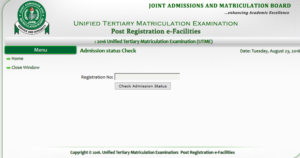
This online newspaper understands that candidates can now monitor their admission status and easily know when they have been offered admission. Once a candidate has been offered admission on JAMB CAPS, such candidate is required to do either of two things; to accept the admission or to reject it.
Some schools may not publish the list of admitted candidates on their own portal or notice board. So for candidates that applied for admission in such schools, the only way to know when they have been offered admission is to check their admission status on JAMB CAPS.
Related Posts: JAMB
- Is JAMB Result 2026 Out
- JAMB – NABTEB no longer recognized for direct entry
- JAMB Announces 140 As Cut Off Mark For 2026 University Admission
- JAMB approves cut-off marks for varsities, polytechnics
- JAMB fixes cut-off marks for 2026 admissions
- Joint Admission and Matriculation Board, JAMB Result 2026: How to Check Online and Offline (SMS)
- 2026 Joint Admissions and Matriculation Board (JAMB) Form › Registration Instructions and Guidelines
- JAMB CBT Software for 2026 UTME Candidates to Get High Score
- JAMB Subject Combinations for UTME & Direct Entry Candidates
- Joint Admissions & Matriculation Board (JAMB) Brochure for 2026/2026 [Latest & Original Version]
- (JAMB) Matriculation List For NYSC Mobilization
- How to Create JAMB Online Profile